
Getting Started
Let’s get your first Teams bot replying fast.
- Be ready in ~5 seconds in any language.
- Talk to your bot in Teams.
- If you still need setup, use the setup checklist and setup details.
TIP
Yes, there’s a little setup first. Think of it as the “stretching before sprinting” part — less fun than chatting with your bot, but better than pulling a hamstring in production.
Step 1 — Ready in ~5 seconds (pick your language)
// Install:
// dotnet add package Botas

using Botas;

var app = BotApp.Create(args);

app.On("message", async (ctx, ct) =>
{
    await ctx.SendAsync($"You said: {ctx.Activity.Text}", ct);
});

app.Run();

// Run:
// dotnet run --project dotnet/samples/01-echo-bot// Install:
// npm install botas-core botas-express
// botapp.ts
import { BotApp } from 'botas-express'
const app = new BotApp()
app.on('message', async (ctx) => {
await ctx.send(`You said: ${ctx.activity.text}`)
})
app.start()
// Run:
// npx tsx --env-file .env botapp.ts// Install:
// deno add jsr:@botas/core
import { BotApplication, validateBotToken } from '@botas/core'
const bot = new BotApplication()
bot.on('message', async (ctx) => {
await ctx.send(`You said: ${ctx.activity.text}`)
})
Deno.serve({ port: 3978 }, async (req) => {
if (new URL(req.url).pathname === '/api/messages') {
const body = await req.json()
await validateBotToken(req.headers.get('authorization') ?? '')
await bot.processBody(body)
return new Response('{}')
}
return new Response('OK')
})
// Run:
// deno run --allow-net --allow-env main.ts# Install:
# uv add botas botas-fastapi
# botapp.py
from botas_fastapi import BotApp
app = BotApp()
@app.on("message")
async def on_message(ctx):
await ctx.send(f"You said: {ctx.activity.text}")
app.start()
# Run:
# uv run --env-file .env botapp.py.NET uses launchSettings.json, not .env
.NET reads credentials from launchSettings.json in AzureAd__ format (e.g., AzureAd__ClientId), not from .env files. Use the env-to-launch-settings.mjs helper script to convert .env to the correct format:
node dotnet/env-to-launch-settings.mjs EchoBotSee Setup Guide → .NET Environment Variables for full details.
Step 2 — Talk to your bot
- Open the
installLinkfrom theteams app createoutput. - Send a message in Teams.
- Get an echo reply from your bot.
- Missing
installLink? Jump to Step 3 setup.
Step 3 — Setup check (30 seconds)
Make sure you have:
- ✅ Teams tenant access — you can sign into Microsoft Teams
- ✅ Teams app created —
teams app createhas run successfully or you've sideloaded an app - ✅ Teams CLI installed —
npm install -g @microsoft/teams.cli@preview - ✅ Dev tunnel running — exposing port
3978to the internet - ✅ Bot credentials in
.env—CLIENT_ID,CLIENT_SECRET, andTENANT_IDare set - ✅ Install link — from
teams app createoutput (needed to test in Teams)
If you're missing any of these, see the Setup Guide for step-by-step instructions.
Quick credential setup
Create credentials + install link with Teams CLI:
teams app create --name "MyBot" --endpoint "https://<tunnel-url>/api/messages" --jsonSave the returned credentials to a .env file at the repo root.
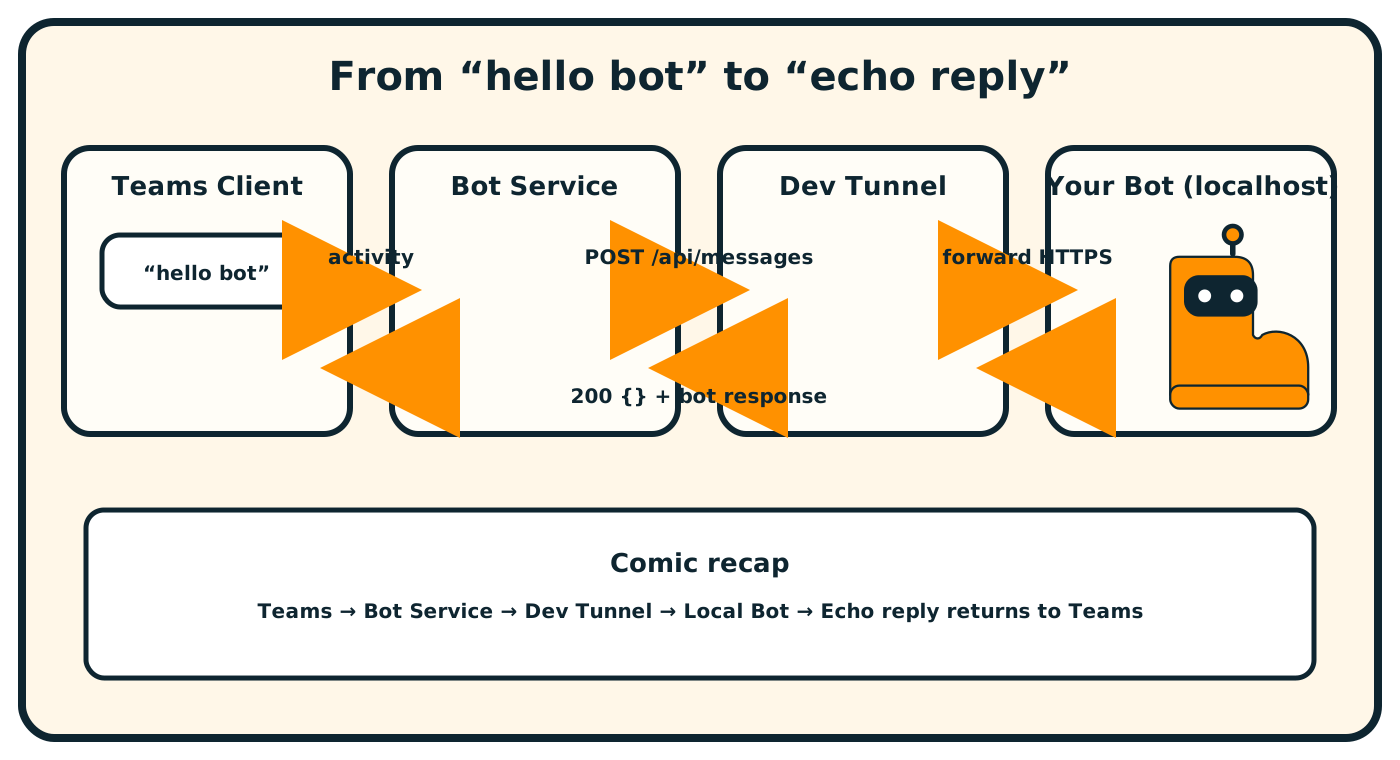
How a Teams message reaches your bot (comic flow)
Setup details (if you need them)
For a complete setup walkthrough from zero, see the Setup Guide.
Quick reference
Teams CLI install:
npm install -g @microsoft/teams.cli@preview
teams login
Dev tunnel setup:
# Install (if needed)
winget install Microsoft.devtunnel   # Windows
brew install --cask devtunnel        # macOS

# Create + host tunnel

devtunnel user login
devtunnel create --allow-anonymous
devtunnel port create -p 3978
devtunnel host
Use the HTTPS URL in your bot endpoint.
More help
- Full setup guide: Setup Guide — detailed walkthrough with troubleshooting
- Authentication deep dive: How Authentication Works — understand the two-auth model
- Manual setup: See the Azure Portal Setup appendix if you can't use Teams CLI
Next steps
- Teams Features — mentions, adaptive cards, suggested actions
- Middleware — extend the turn pipeline
- Language guides — deeper framework-specific guidance
- Setup Guide — full setup walkthrough from zero
- Authentication — how the two-auth model works under the hood